User Guides
Admin console EMS
Users
Add and import users
Search and filter
Bulk update
User profile
User settings
User groups
Devices
Events
Lone Worker
Dynamic frontend
User Groups
Events
Event settings
Advanced event settings
Text / Images / Audio
Recipients and permissions
Document sets
Time plan
Chat
Channels
Conference call
Placeholders
Documents
Checklists
Event Log
On Duty Log
Auth Groups
Tasks
Lone Worker
Lone Worker Overview
Lone Worker Settings
Vertical / Tilt Alarm
No Moving Alarm
Wifi Connection Check
Find me Alarm
Pre alarm
Customized Confirmation
SOS Alarm
Settings
Default channel settings
Event states
Event State Sets
Channels configuration
Conference Call
Sync Users
SMS Settings
Call Settings
Edge Settings
Activation
E-Mail Templates
Acronyms
Beacon
Perimeter Provider
Digital Signage
Beacon Monitoring
Notification Personalization
Application Configuration
Tenant Configuration
Channel Sequences
Reports
Media
Desktop Client
Technical Integration Guides
Release Notes
- All Categories
- Technical Integration Guides
- Silent login for the Windows desktop client
Silent login for the Windows desktop client
Integrating the s.GUARD desktop client with Entra ID. If Microsoft Entra ID is used, the s.GUARD desktop client offers the possibility to configure silent login by using the Windows primary refresh t…
Integrating the s.GUARD desktop client with Entra ID
If Microsoft Entra ID is used, the s.GUARD desktop client offers the possibility to configure silent login by using the Windows primary refresh token (PRT).
In that case, any person which is registered in Entra ID can be logged in with his Windows user in the s.GUARD desktop client without any user interaction.
This method can be used with both hybrid joined and Entra joined devices.
Configuration on Microsoft Azure
To enable silent login, the following configuration steps must be performed:
- Log in to Microsoft Azure portal and access Entra ID
- Go to "Manage -> Enterprise applications"
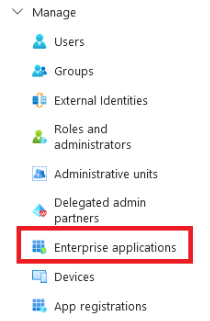
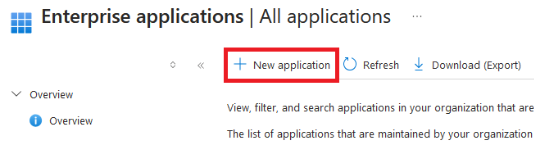
- Click "+ New application" on the top left
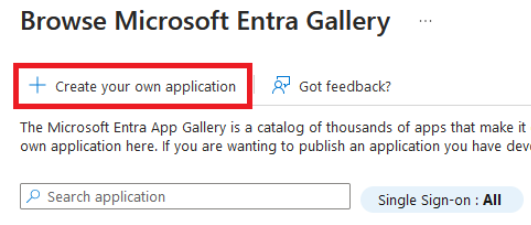
- Click "+ Create your own application" on the top left
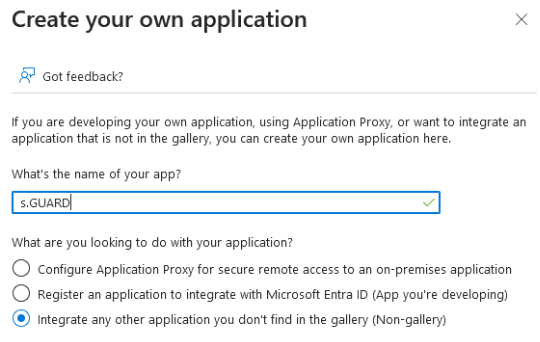
- Enter a descriptive name for the newly created application and select "Integrate any other application...". Then click "Create"
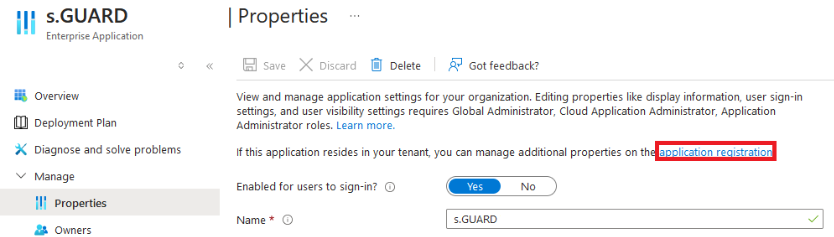
- Go to "Manage -> Properties" and click the link for "application registration"
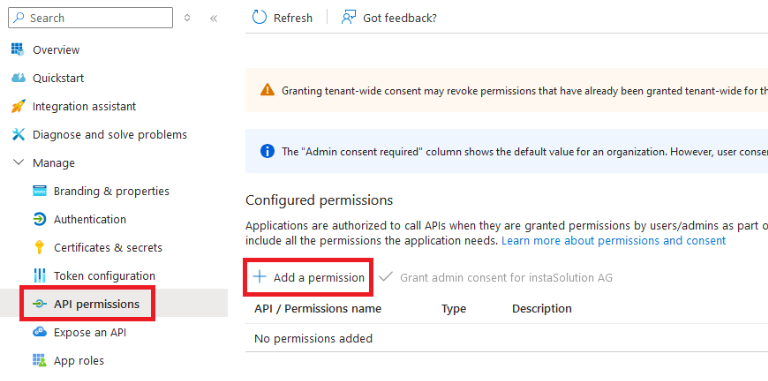
- Go to "Manage -> API permissions" and click "+ Add a permission"
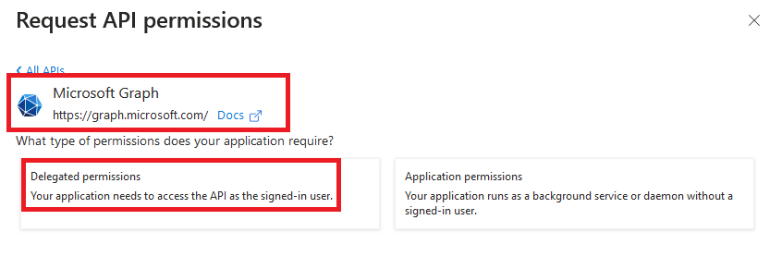
- Select "Microsoft Graph" and click "Delegated permissions"
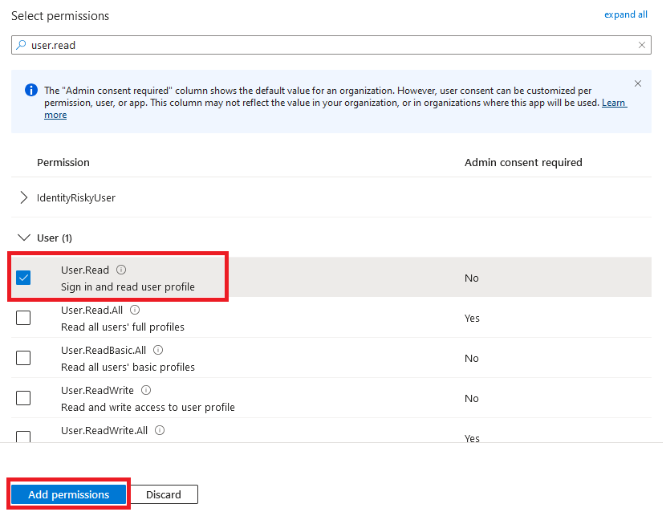
- Select "User -> User.Read" and click "Add permissions"
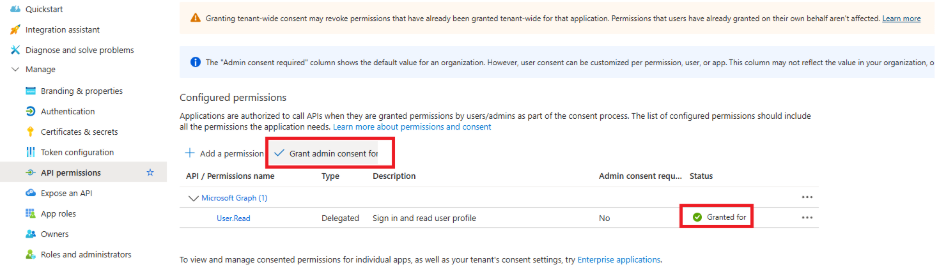
- Click on "Grant admin consent for..." and make sure the green check mark has been set
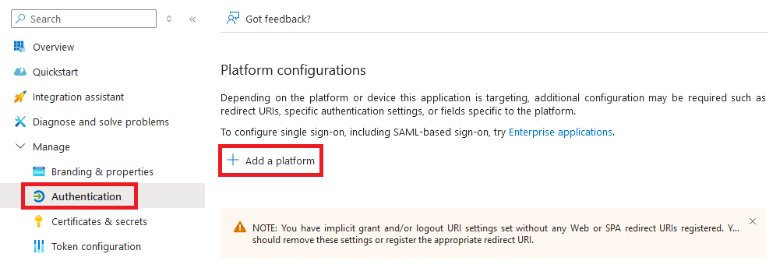
- Go to "Authentication" and click "+ Add a platform"
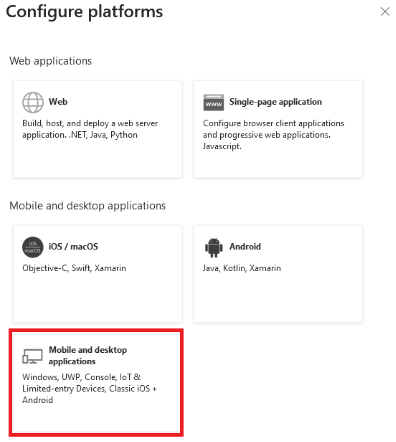
- Select "Mobile and desktop applications"
- Add the following custom redirect URLs:
- ms-appx-web://microsoft.aad.brokerplugin/{client_id}
- http://localhost:3456/auth_callback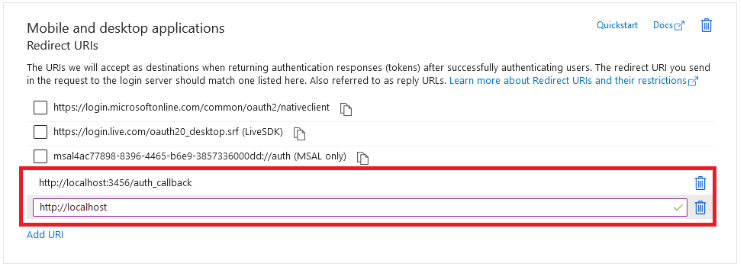
- Go back to "Overview" and copy the "Application (client) ID" and "Directory (tenant) ID".
Send both IDs to s.GUARD support.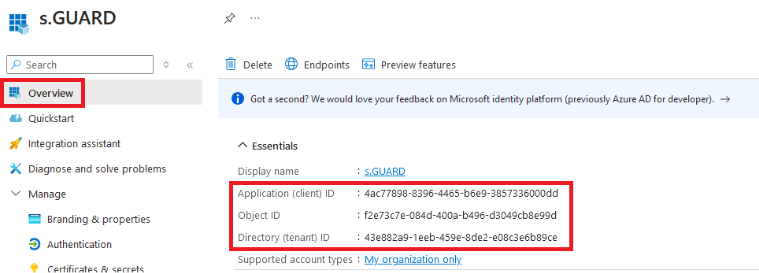
SSO via OAuth 2.0 / OIDC
SCIM Configuration in Entra ID